
Spline's Liquid Glass is refraction you can tune
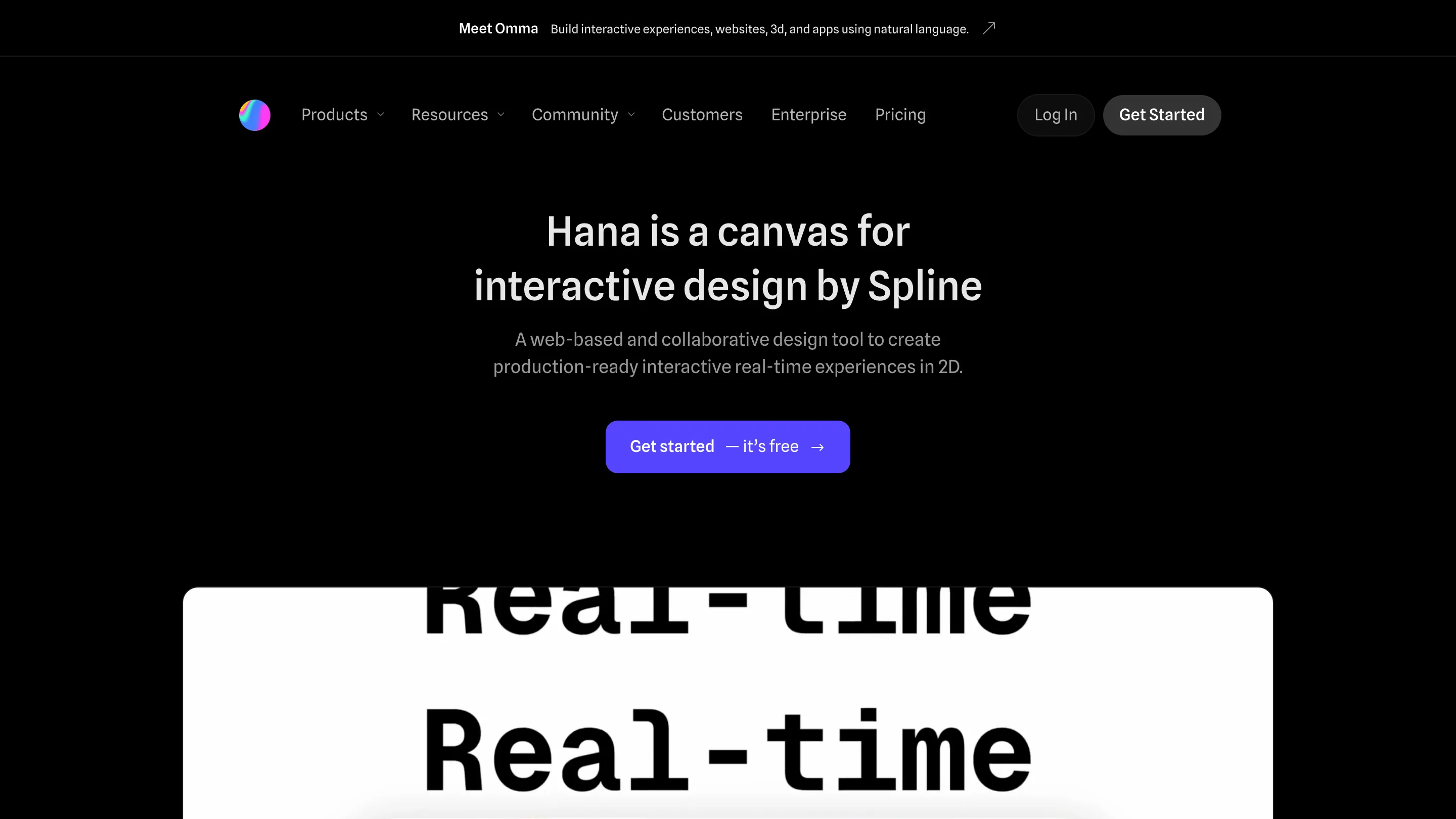
Spline's Hana canvas makes Liquid Glass an editable effect: tune the distortion, stack panes, and animate the refraction like any other layer.
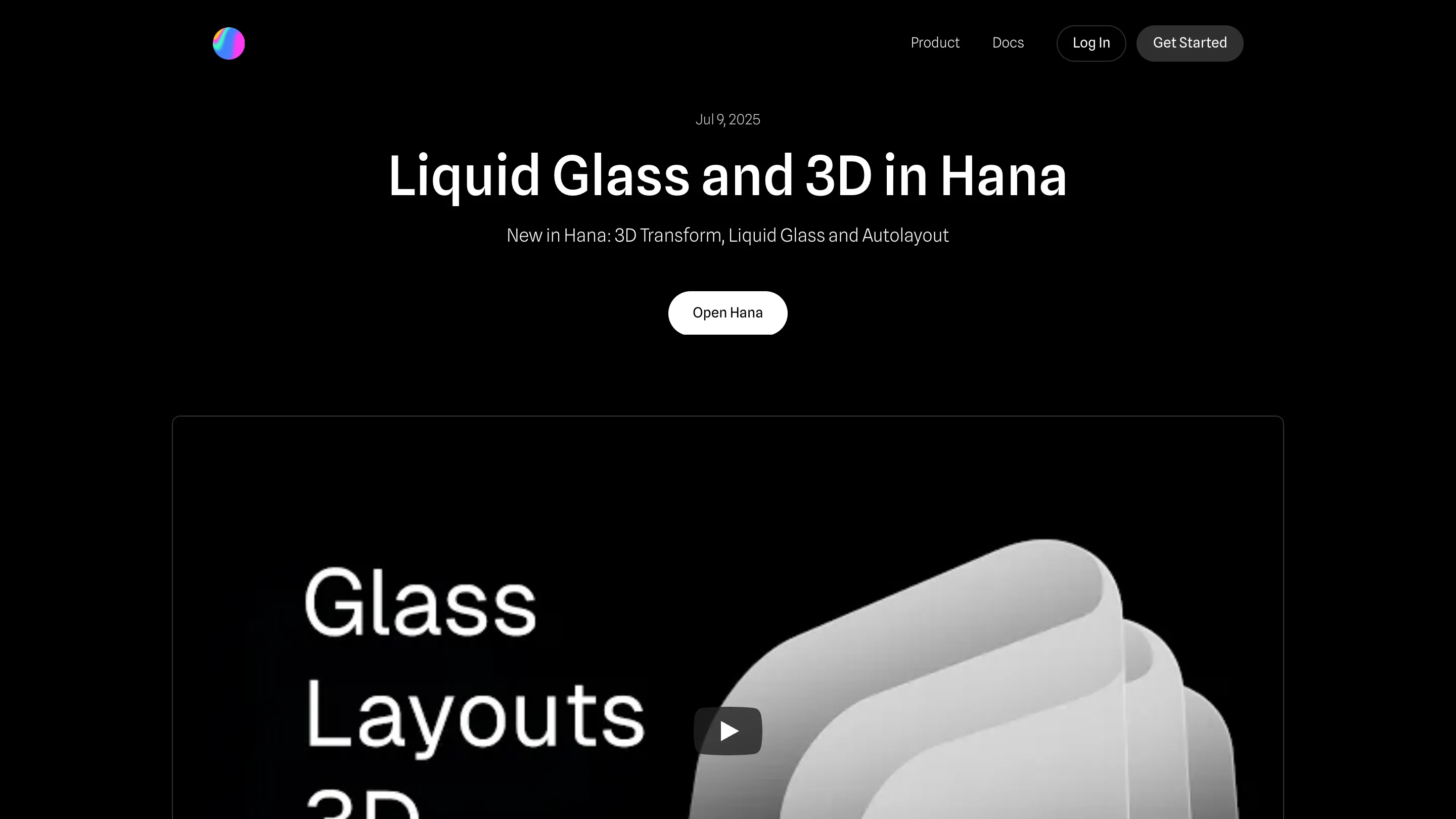
Apple shipped Liquid Glass with iOS 26, and every product team has been chasing that wet, refractive look since. Spline built it into Hana, its browser design canvas, as an effect you apply to a layer and tune by hand. You pick a shape, open the Effects panel, add Liquid Glass, and drag the Distortion slider until the background bends the way you want.
That last part is the point. Liquid Glass in Spline behaves like a real material control. It's a live effect with parameters, parked in the same right-side panel as Fill and Stroke, so you tune it by hand instead of picking a canned style.
What Liquid Glass actually does
Refraction. When you put a glass layer over content, it bends and displaces whatever sits behind it, the way a rounded pane of real glass would. Spline reads the pixels underneath and warps them in real time, so moving the glass around the canvas updates the distortion as you drag.
The Distortion parameter controls how hard it bends. Low values give you the soft iOS look, a gentle smear at the edges. Push it up and the glass turns into something Apple would never ship, a heavy lens that folds the background in on itself. Both are one slider apart.
The detail most tools miss: you can stack glass. Put two panes over each other and each one refracts the one below, so the distortion compounds instead of flattening into a single blur. That's what makes a layered card of glass chips read as real depth rather than a decal.
It lives with the other effects
Hana keeps Liquid Glass in one Effects panel next to Drop Shadow, Inner Shadow, the blurs, Noise Glass, and 3D Projection. You stack as many as you want on a single shape and adjust each one on its own.
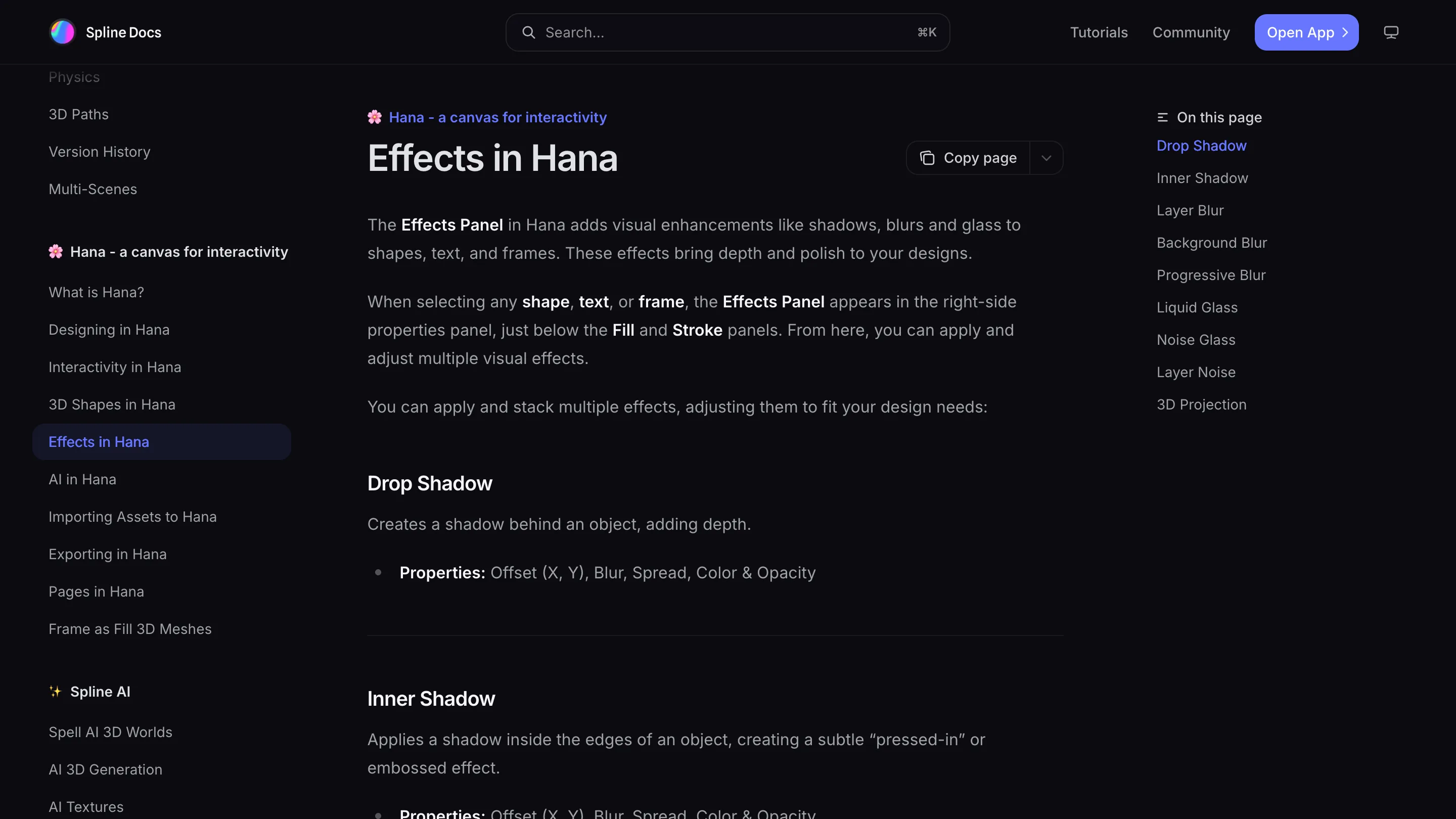
Two that pair well with glass: Progressive Blur, which fades a blur across a direction, and Noise Glass, which adds grain so the surface doesn't look too clean. Between them you can build a phone-style control panel or a frosted poster without leaving the canvas.
Because these are effects and not baked images, they animate. Hana ties them to its event and state system, so a glass panel can slide in, sharpen, or shift its distortion on a hover. The 3D side works the same way. Spline added real 3D transforms, so a flat frame can rotate into space and act as a portal onto whatever sits inside it.
Where it changes the work
The old way to fake glass in Figma was a rectangle, a background blur, a white fill at low opacity, and a lot of hoping the export held up. It never refracted. It just blurred. Designers who wanted true refraction went to After Effects or wrote a shader.
Spline collapses that. You get the refraction, the controls, and the animation in a browser tab, on a free tier, and you can export the scene or embed it live on a site. For a hero section, a device mockup, or a set of glass cards, that's a real shortcut.
Where it falls short
Glass is expensive to render. Stack four refractive panes with video behind them and you'll hear your laptop fan. Spline says Hana got about twice as fast on large scenes, which helps, but this is still the heaviest effect in the panel, and it costs more on the page than a static blur.
It's also easy to overdo. Liquid Glass looks sharp on one control surface and cheap on twelve. The tool makes it a slider, so restraint is on you.
If you've been eyeing that iOS 26 look and dreading the shader work, Spline's Liquid Glass is the fastest way to design it and watch it move. Open Hana, drop a shape on something busy, and push the Distortion.