Figma Draw gets a vector eraser and a paint bucket
Figma's 24 August release puts an eraser and a paint bucket in vector edit mode. Shift+E rubs out a path, Shift+B drags fill across closed regions.
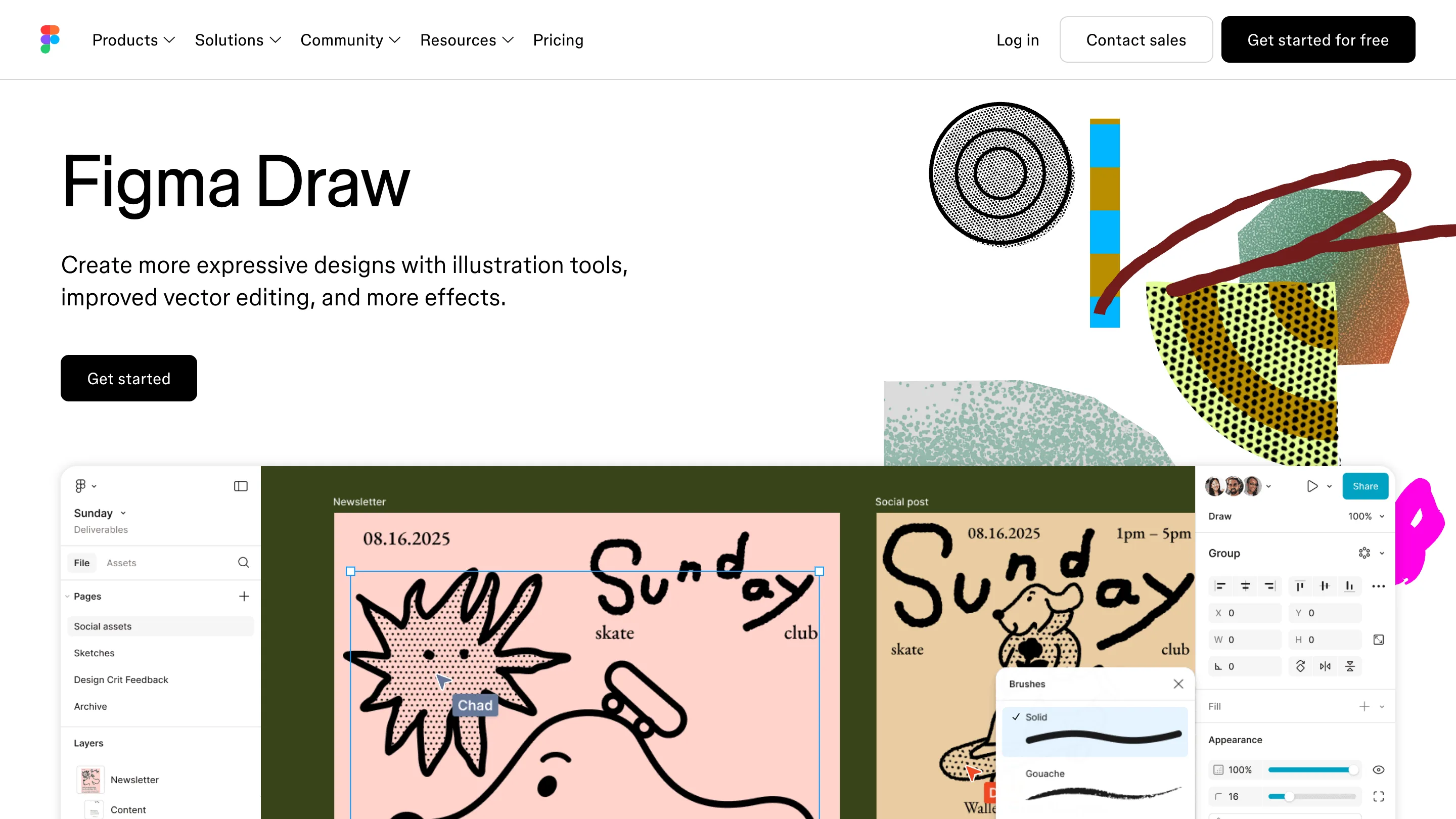
Figma shipped a vector eraser and a paint bucket on 24 August. Press Enter on a vector layer, hit Shift+E, and you can rub out part of a path by dragging across it. Shift+B switches to Paint: pick a color or a gradient, then drag over the closed regions you want to change. Both tools live in vector edit mode, so they work in Design and in Figma Draw, the illustration side of the app.
The eraser leaves you one layer
The eraser takes a weight and a shape from the right sidebar, so it handles like a brush. Drag it across a stroke and Figma writes new editable points along the edge it cut. Erase clean through a shape and the result stays a single layer: two islands, one vector network, still one thing in the layers panel.
That is the part worth knowing. Taking a bite out of a shape used to mean drawing a second shape on top, subtracting it, then flattening. Three moves and a leftover layer to tidy. Now it is one drag.
The cost lands in the point count. Every erased edge arrives as real geometry, and a freehand pass puts down more points than a boolean would. For an icon headed into a component library, the pen is still the cleaner instrument. For chewing a rough edge into an illustration, the eraser is the right hand tool.
Paint fills a region, then the next one
Coloring a line drawing in Figma meant picking each closed area and setting its fill in the right sidebar, one at a time. Paint folds that into a gesture. Click a region to add or drop a fill. Hold and drag and you recolor a run of them in one pass, gradients included.
The boundary is the vector network. Paint sees the closed regions inside one network, so a drawing split across separate layers will not flood the way you expect it to. Merge the paths first, or spend a pass per layer.
Seven tools deep in vector edit mode
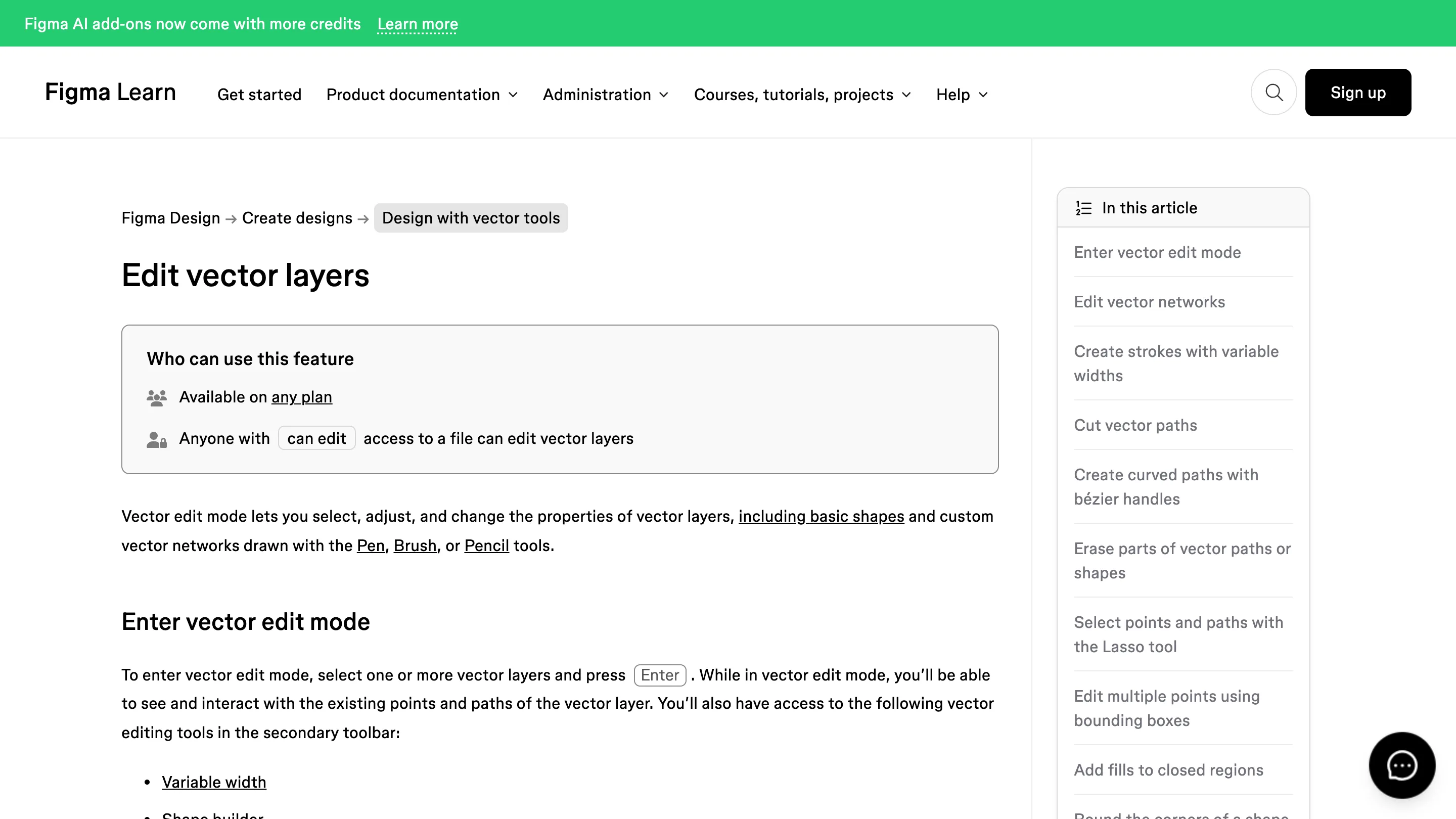
Variable width, Shape builder, Cut, Bend, Eraser, Lasso, Paint. That is the secondary toolbar you get after pressing Enter, and it reads like an illustration app now. Figma has been filling this shelf all year, and the two August additions are the ones that change how you hold the mouse rather than what a panel offers.
The erase behaviour is documented plainly: click and drag over the area you want gone, and new editable points appear along it. No mask, no live boolean, no way back except undo. Keep a copy of the path if the shape is precious.
Is it worth opening today
If you draw in Figma, yes. Spend ten minutes on an old illustration file: erase into a couple of strokes to see how the points land, then drag Paint across a set of enclosed shapes and watch how fast a flat drawing takes color. Both gestures are muscle memory from Illustrator and Procreate, which is the whole idea.
If your week is screens and auto layout, this one passes you by. The 21 August spacing update, which taught auto layout the Between, Around and Evenly options that CSS already had, is the release that touches your files.
Credit: Figma release notes, 24 August 2026.