Framer localization lets you translate one page at a time
Framer's new Content panel sets every page, collection and component per locale: translate it, leave it in the fallback language, or hide it.
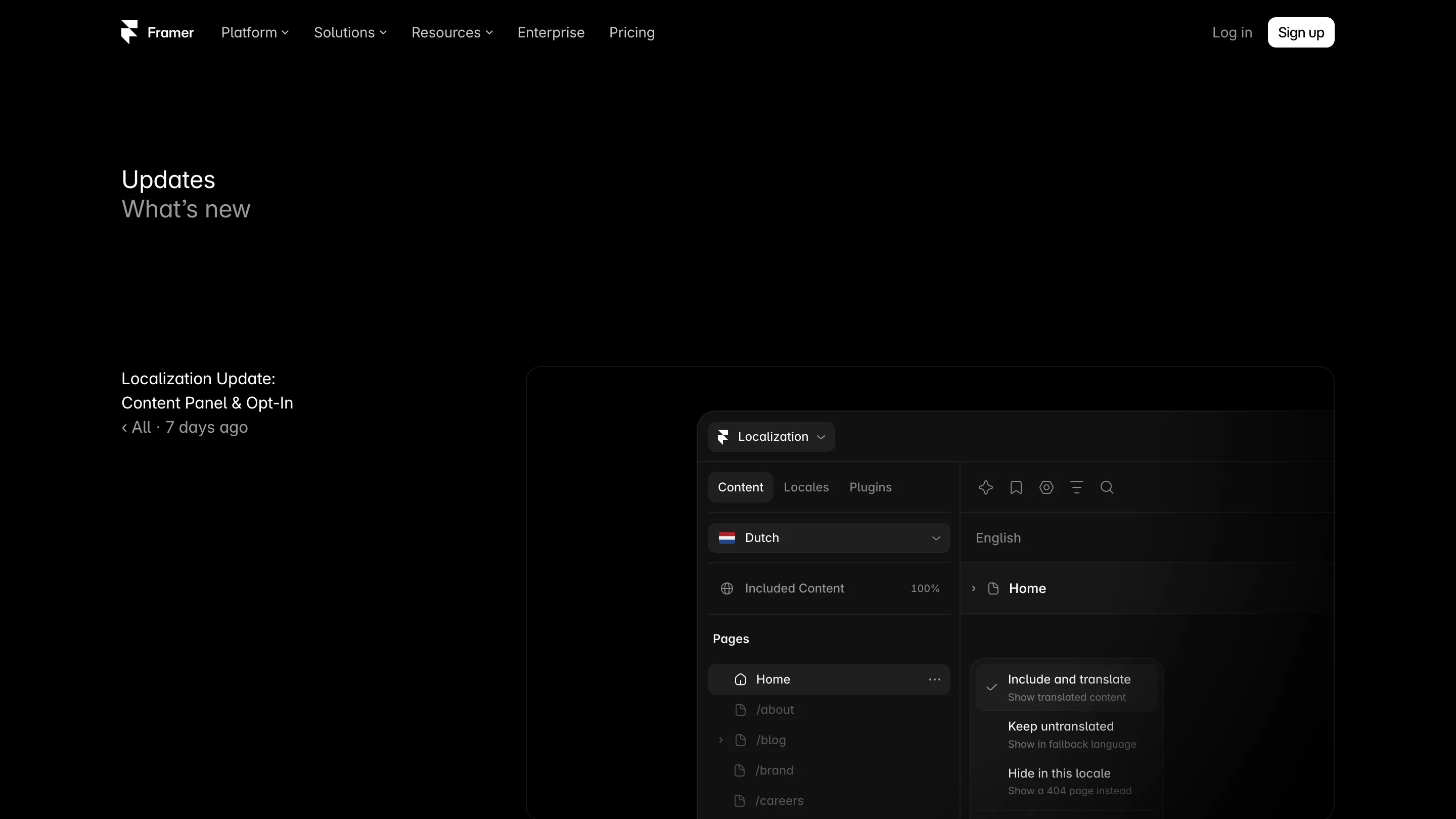
Framer localization now lets you choose, page by page, what each language gets. The new Content panel, shipped on 2 November, lists every page, collection and component in your site against each locale, and gives every item three states: include and translate, keep untranslated, or hide in this locale. You can launch a Dutch homepage on Monday and leave the blog in English until someone has time for it.
Until now, adding a locale pulled the whole site in at once. Every string from every page landed in the Localization table, and you either translated all of it or lived with a half-finished table and the fallback filling the gaps quietly.
What the Content panel shows
Open Localization from the top-left menu and there's a new tab next to Locales and Plugins: Content. Pick a locale from the dropdown and you get your page tree, /about, /blog, /brand, /careers, with an "Included Content" percentage at the top. That number is the useful part. It tells you how much of the site the Dutch reader actually sees in Dutch, before you publish.
Each row has a menu with the three options, and each one says plainly what the visitor will get. "Include and translate" shows the translated content. "Keep untranslated" shows the fallback language. "Hide in this locale" serves a 404 instead.
You can set a state on several items at once, or on every locale at once. On a site with 40 pages and four languages, that's the difference between one click and 160.
Opt in when you add a locale
The second half of the update sits in the Add Locale flow. When you create a new language you now decide the default: include all content, or keep it all untranslated and opt pages in as they get done. Framer pitches it as gradual localization, and the example it gives is the honest one: translate the homepage first, add the rest later.
That changes who can start a locale. A studio can ship the pages a client's sales team needs in German this quarter, the home, pricing and contact, without signing off a translation budget for 30 blog posts nobody in Berlin will read.
Hide versus untranslated
The two quiet states do different jobs, and it's worth picking on purpose.
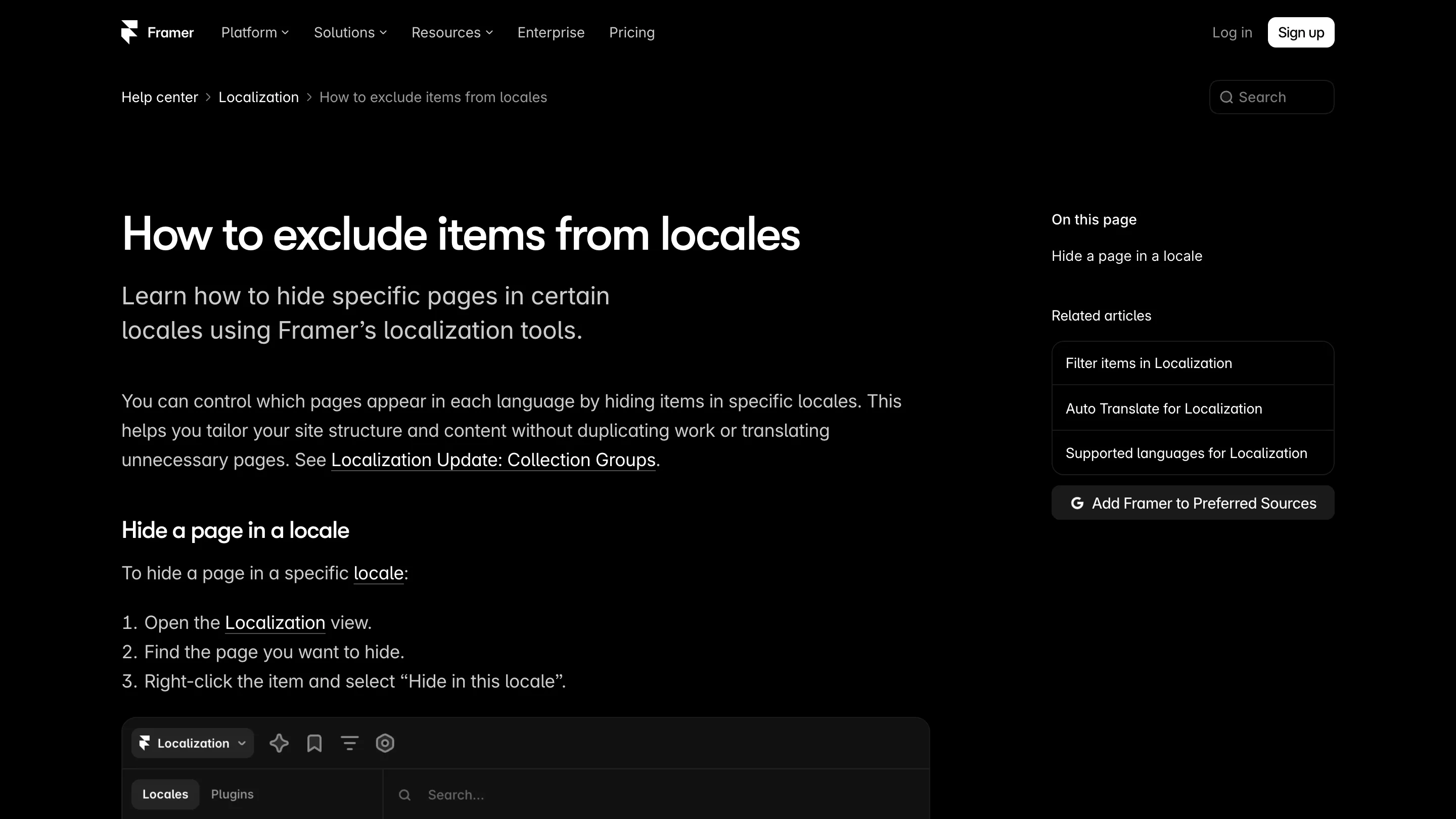
Hiding a page removes it from that language. Framer's help article says a hidden page returns a 404 in that locale, and the locale picker drops the language when someone views the page elsewhere, so nobody clicks into a dead end. Use it for pages that don't exist in a market: a careers page for an office you don't have, a legal page that only applies in one country.
Keeping a page untranslated leaves it live in the fallback language. The Italian visitor reads your case study in English, inside the Italian site's navigation. That's fine for content that's still waiting on a translator. Left that way for months, it reads like a site that forgot to finish.
One limit carries over from before: you can only hide items in added locales. The base locale always has everything.
How it sits with Auto Translate
Framer's Auto Translate, which arrived in March, translates new and edited content on the Canvas and in the CMS as you work, and it spends AI credits from your plan. The Content panel is where you stop it from translating things you didn't want translated. Set a section to untranslated and it stays in the fallback language, whatever Auto Translate would have done with it.
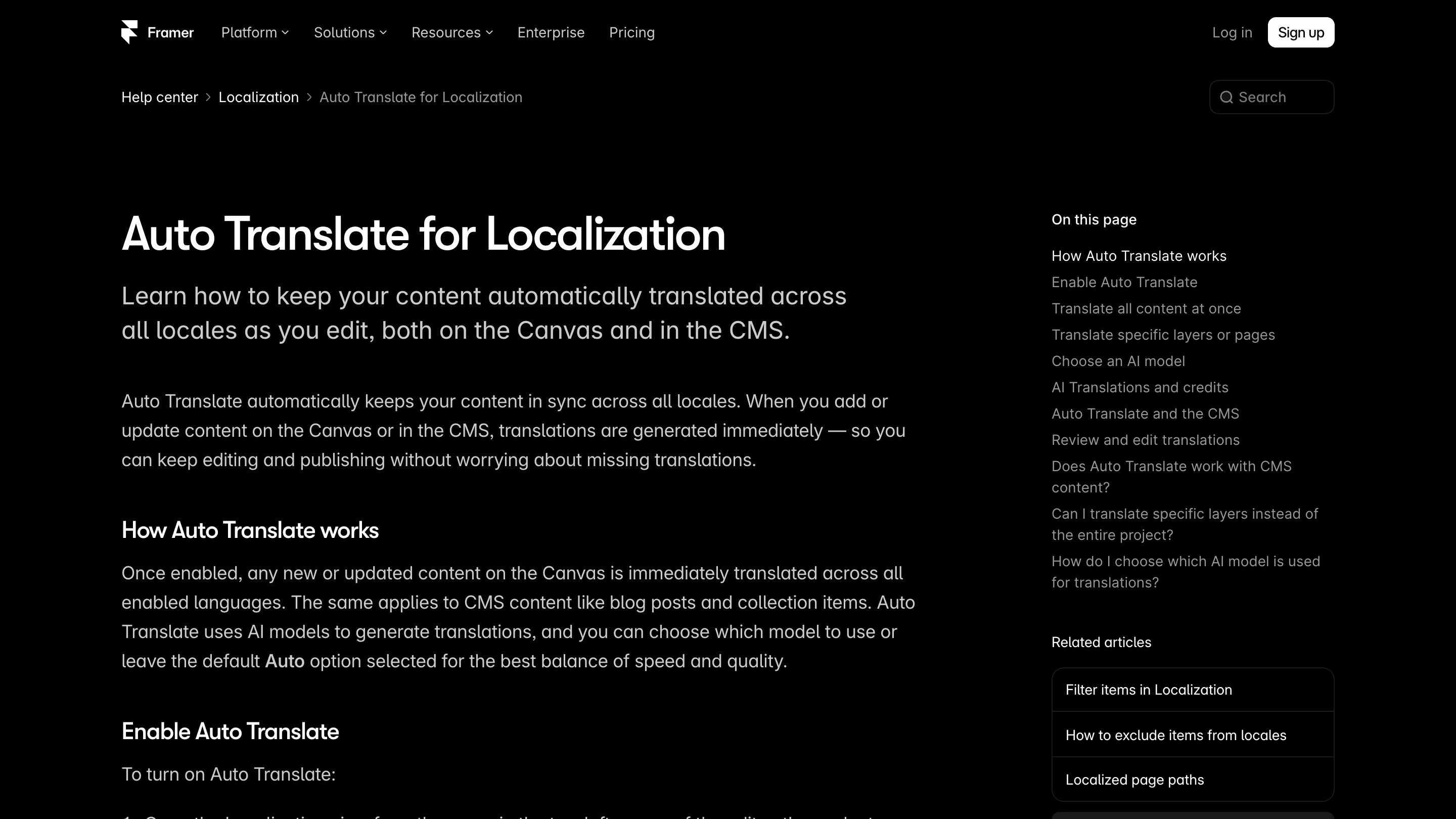
Typing your own translations still costs no credits, so a team with a native speaker can opt pages in one at a time and do them by hand.
Where it falls short
The update note gives no word on what a hidden page does to the sitemap or the hreflang tags, and those are what Google reads. Check your published sitemap after you hide something. It also leans on the Localization add-on, so a site without it gets none of this.
If you run a Framer site in more than one language, or held off adding one because the whole site had to come along, open the Content panel today. Start with the pages your second market will actually visit.